Reprint photos
Guests can print extra copies of their photo after the first one. In the app this is called Multiple print. Turn it on and set a timeout in Booth Customisation.
- Open Booth Customisation in the sidebar and scroll down to Multiple print.
- Switch Enable on. After the first print, guests can print more identical copies.
- Set Maximum extra copies, the most extra copies a guest can pick. The default is 3.
- Switch Auto-dismiss dialog on. This closes the extra-copies screen by itself if the guest does not choose, because guests often forget to dismiss it.
- Set Auto-dismiss after, the number of seconds before it closes.
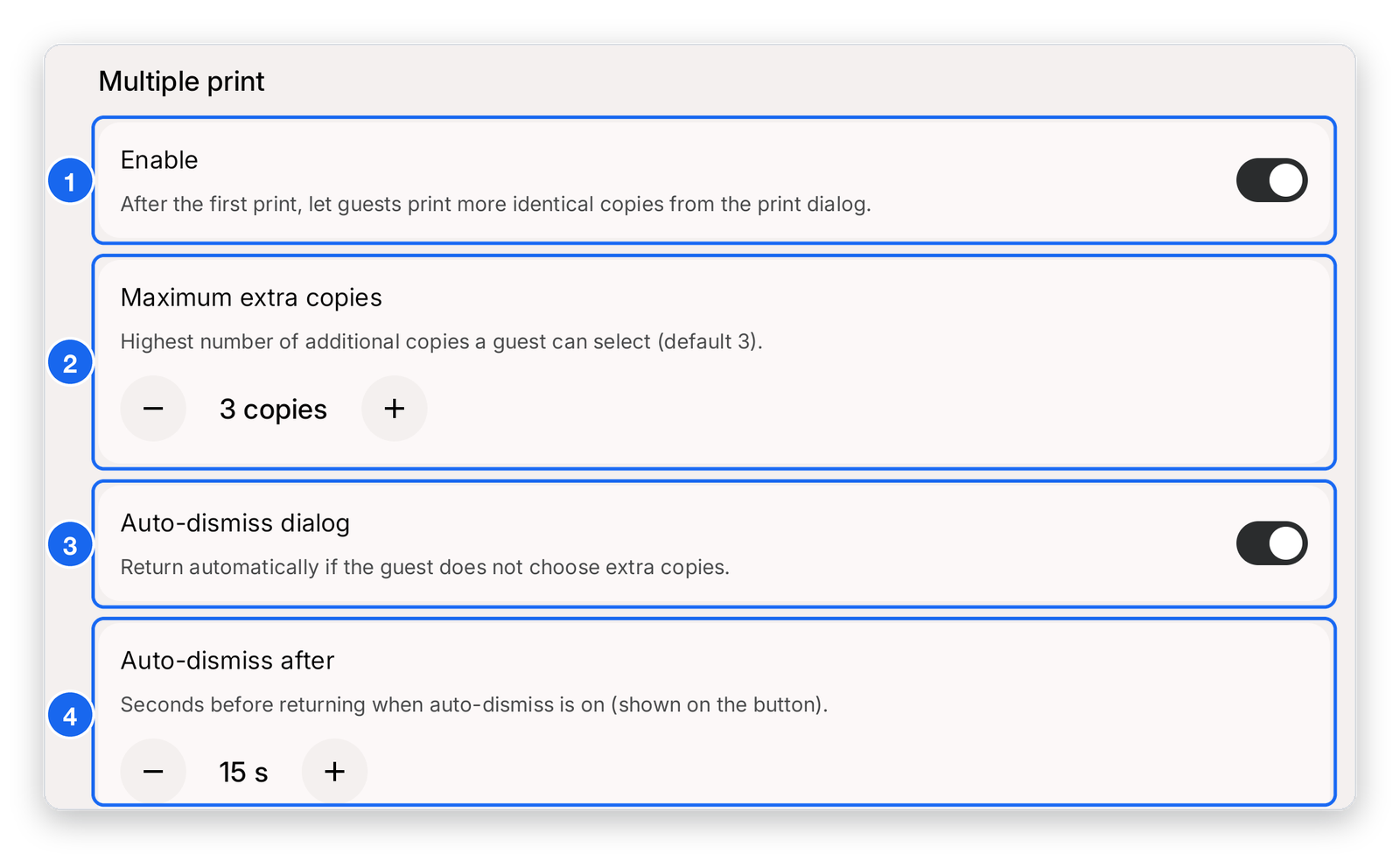
- Enable — turns extra copies on.
- Maximum extra copies — tap − or + to change the limit.
- Auto-dismiss dialog — returns to the photo screen automatically if the guest does not choose extra copies.
- Auto-dismiss after — how many seconds it waits before closing. This only applies when auto-dismiss is on.
tip
Each extra copy uses paper. Keep a spare roll nearby at busy events. See Paper and reorders.